From the author of A Beginner's Guide to ChatGPT

Learn artificial intelligence, one question at a time

Clear answers to the questions people actually ask about AI, from your first prompt to building agents. Every article answers a main question and the one that comes next, with sources you can check.

Start here Try the prompt tools

How the guide works

  1. 1

    Ask

    Each article starts with a question and a two-sentence answer, then explains it with examples.

  2. 2

    Try

    Prompts you can copy, exercises, and free tools built from the book's method.

  3. 3

    Check

    Two or three sources per article, primary sources first, and a date on everything.

Latest answers

All articles

AI, as it happened

From the automata of ancient myth and the 1956 workshop that named the field to this month's releases: a dated, sourced timeline of AI.

Open the timeline

  1. c. 8th century BCEHomer describes Hephaestus' golden attendants
  2. January 1, 1818Mary Shelley's Frankenstein
  3. August 31, 1955Dartmouth proposal coins 'artificial intelligence'
  4. January 1966Weizenbaum's ELIZA
  5. May 11, 1997Deep Blue defeats Garry Kasparov
  6. November 2, 2026Anthropic's S-1 amendment adds Q3 results and $895 billion in commitments
  7. October 30, 2026AI spending worries drive a tech sell-off
  8. October 29, 2026Mistral Large 4 weights released
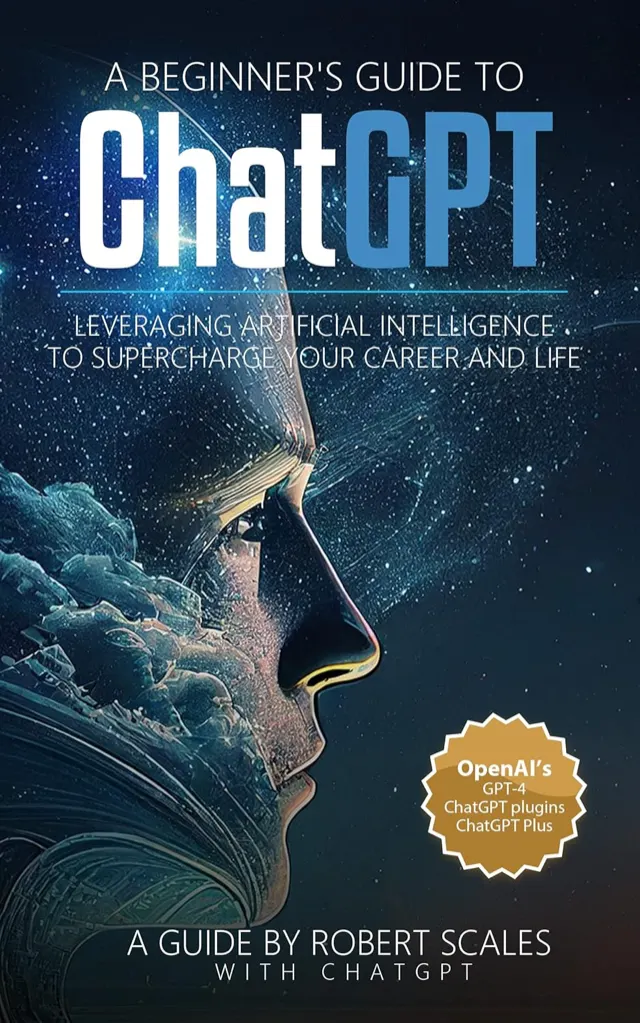
Cover of A Beginner's Guide to ChatGPT by Robert Scales

It started with a book

In April 2023 Robert Scales published A Beginner's Guide to ChatGPT, written with GPT-4 as co-pilot. This site grows that method into a guide to all of AI.

About the book

Get the free Guide to Artificial Intelligence

Sign up for the newsletter and receive the free guide: what changed in AI, one lesson, one prompt to try. Unsubscribe in one click.

How we handle your address

Back to top

Display

Your choices are saved in this browser only. No data is sent.

Text size
100%
Colours
Reading
More settings
Accessibility statement

Get the app

Add the guide to your home screen. It opens like an app, and the pages you have read stay available offline.

Read without a connection: download the articles

iPhone and iPad (Safari, Chrome, Edge)

  1. Tap the Share button (the square with an arrow). In Chrome and Edge, it is in the address bar or the menu.
  2. Choose “Add to Home Screen”.
  3. Tap “Add”.

Android (Chrome, Edge, Samsung Internet, Firefox)

  1. Open the browser menu (⋮ or ☰).
  2. Choose “Install app” or “Add to Home screen”.
  3. Confirm with “Install”.

Computer (Chrome, Edge)

  1. Click the install icon at the right end of the address bar, or open the browser menu (⋮ or …).
  2. In Chrome, choose “Cast, save and share”, then “Install page as app”. In Edge, choose “Apps”, then “Install this site as an app”.
  3. Click “Install”.

Mac (Safari)

  1. Open the File menu.
  2. Choose “Add to Dock”.
  3. Click “Add”.

Firefox on a computer can’t install a site as an app. Use Chrome, Edge or Safari instead.