The newsletter
The newsletter: what changed in AI, what it means for you, one lesson and one prompt to try. Sign up and the free Guide to Artificial Intelligence is yours.
What you get
- The free Guide to Artificial Intelligence, as soon as you confirm
- What changed in AI and what it means for you
- One lesson and one prompt to try
- New downloads before anyone else
You'll get a confirmation email first (double opt-in). Your address is never shared or sold. Unsubscribe in one click.
Prefer LinkedIn? Follow the LinkedIn newsletter
That guide link isn’t valid any more. Sign up again below, or write to info@guidetoartificialintelligence.com.
Get the free Guide to Artificial Intelligence
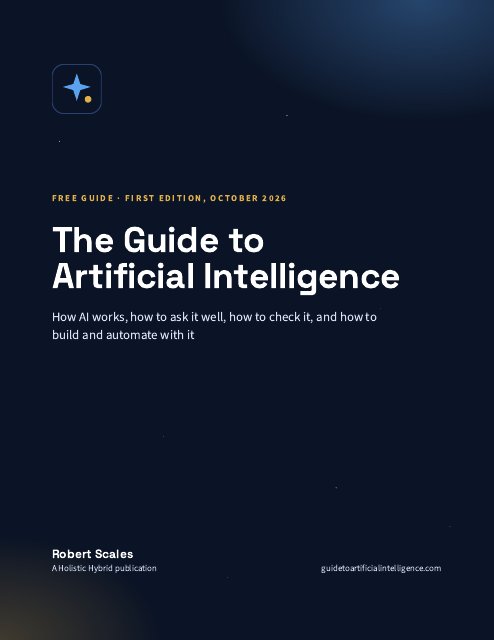
Inside the free guide
PDF · 29 pages · first edition, October 2026
- What AI is, in plain words
- Where this came from
- The AI landscape in October 2026
- Think with AI, not instead of it
- The method: ask well
- From simple to refined prompts
- Check every answer: the seven-point list
- Prompts for your work
- Your AI workspace: memory, projects and tools
- Automation: tasks, schedules and routines
- Building with AI
- Agents: AI that acts
- Cloud or local: where your AI runs
- Privacy, law and good habits
- AI and your work
- Twenty-five terms worth knowing
- What to do next